Click through to see how to configure user roles in Viedoc Designer, then invite study users with those roles in Viedoc Admin.
Demo length: 7 steps (~2 mins)
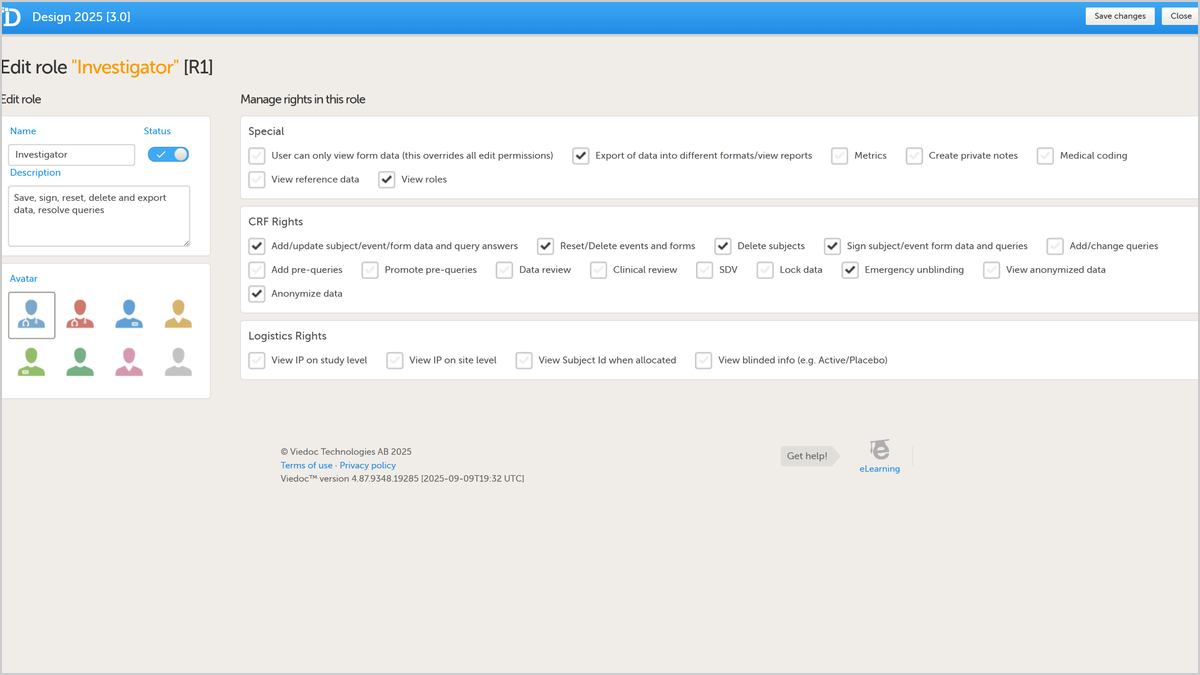
Viedoc Designer and Viedoc Admin manage role settings and access for clinical studies. In Viedoc Designer, access the roles listing by clicking Edit for Roles in your study design. Edit role names, descriptions, avatars, and rights by clicking the pencil icon. Add multiple roles as needed for your study. Modify role name, status, description, avatar, and select rights for each role. Save changes after updating a role. In Viedoc Admin, invite users with roles configured in Viedoc Designer by accessing Study Crew or Site settings. Use Add study users tab to input email addresses of users to invite with assigned roles. Enter user email addresses, click continue, and populate roles, site access, and other parameters that are available from study design setup. Click Send invite after selecting necessary roles and sites to complete user invitation process.
What you'll see
In Viedoc Designer, open Roles to see the full list configured for the study.
Click the pencil icon to edit a role's name, status, description, avatar, and rights, then save changes.
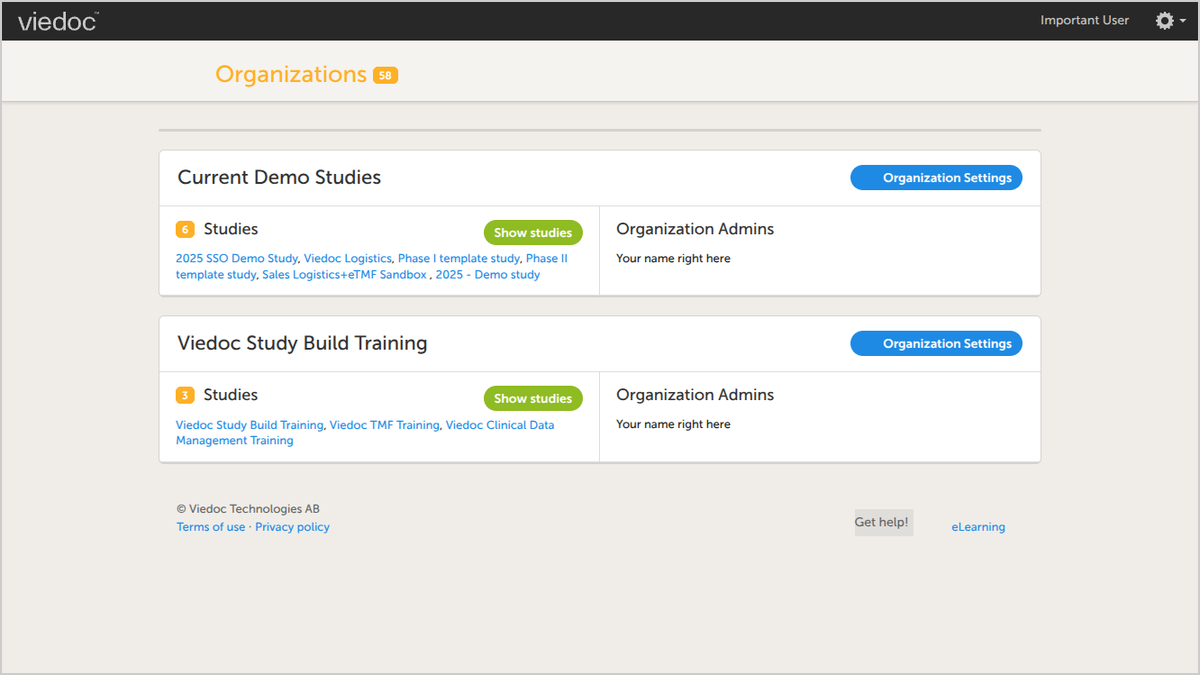
In Viedoc Admin, use Study Crew or Site settings to invite users with the roles set up in Designer.
Enter an email address under "Add study users" and continue to populate roles, site access, and other details.
Review the assigned roles and sites, then send the invite to complete setup.
Request a demo
You might also be interested in
Watch related demos to learn more about Viedoc eClinical suite.